Install HyprFlux for the First Time
This tutorial installs HyprFlux on a computer that does not have Arch Linux yet. You boot from a USB drive, the installer sets up Arch Linux and the HyprFlux desktop, and you sign in for the first time. No prior Arch or Hyprland experience is needed.
Already have Arch Linux?
This tutorial installs Arch Linux for you. If Arch is already on your system, follow the existing-Arch installation guide instead.
Before you start
You need:
- An x86_64 computer with at least 4 GB of RAM (8 GB or more is better) and at least 20 GB of free storage.
- A USB drive large enough to hold the ISO.
- An internet connection. The installer downloads packages during setup.
This erases a disk
The installer erases the whole disk you select. Use a spare machine or a virtual machine if you are unsure, and back up anything important first.
For the full requirements, see the complete ISO installation guide.
Step 1: Download and verify the ISO
Download the latest HyprFlux ISO and its matching .sha256 file from the HyprFlux releases page. Put both files in the same folder, then verify the ISO:
sha256sum -c hyprflux-*.iso.sha256Wait for the command to print OK before you continue. If it does not, download the ISO again. See the download guide if you would rather use a mirror.
Step 2: Write the ISO to a USB drive
Find your USB drive with lsblk, then write the ISO to it:
lsblk
sudo dd bs=4M if=hyprflux-*.iso of=/dev/sdX status=progress oflag=sync
This erases the USB drive
dd writes to the whole device, not a partition. Check /dev/sdX before you run this. The wrong device name destroys its data.
balenaEtcher works too if you prefer a graphical tool.
Step 3: Boot the ISO
Insert the USB drive, restart the computer, and open the firmware boot menu. Select the USB device.
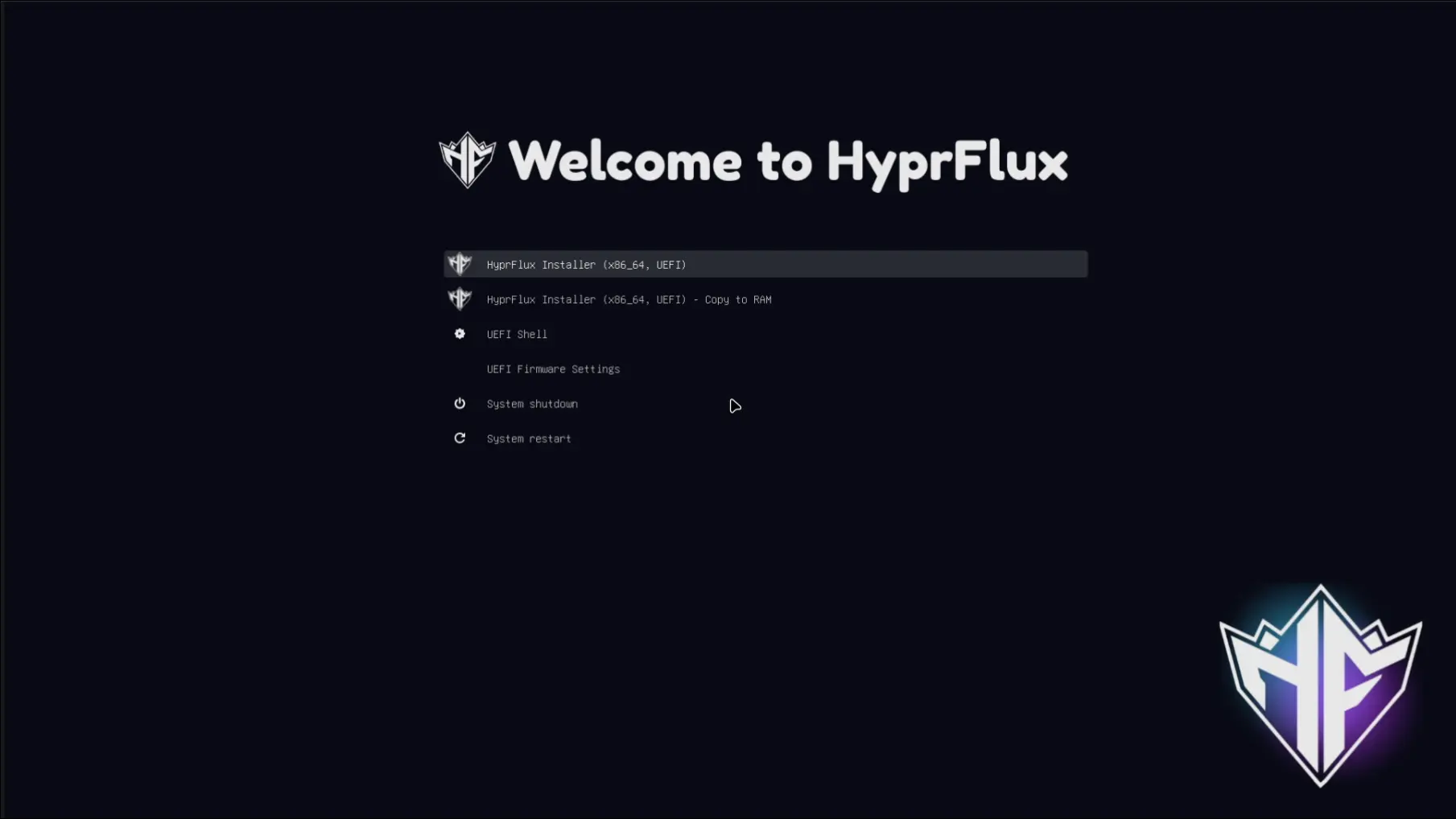
Choose the normal HyprFlux installer option. The boot splash appears, then the installer signs you in automatically and starts:

Step 4: Follow the installer
The installer walks through several screens:
Network check. The installer confirms it can reach the internet. If this fails, it drops you to a shell. Run
nmtuito connect, then restart the installer withbash ~/hyprflux-install.sh.Welcome and confirmation. Review the requirements and confirm that you want to continue. Nothing is erased yet.
Regional settings. Pick your timezone, locale, and keyboard layout.
Hostname and user. Choose a hostname, a lowercase username, and a password. The password is used for your account and the root account.
Disk method. Choose Automatic. It partitions the whole selected disk with GPT and ext4, plus the correct boot partition for your firmware. It asks you to type
yesbefore it erases anything.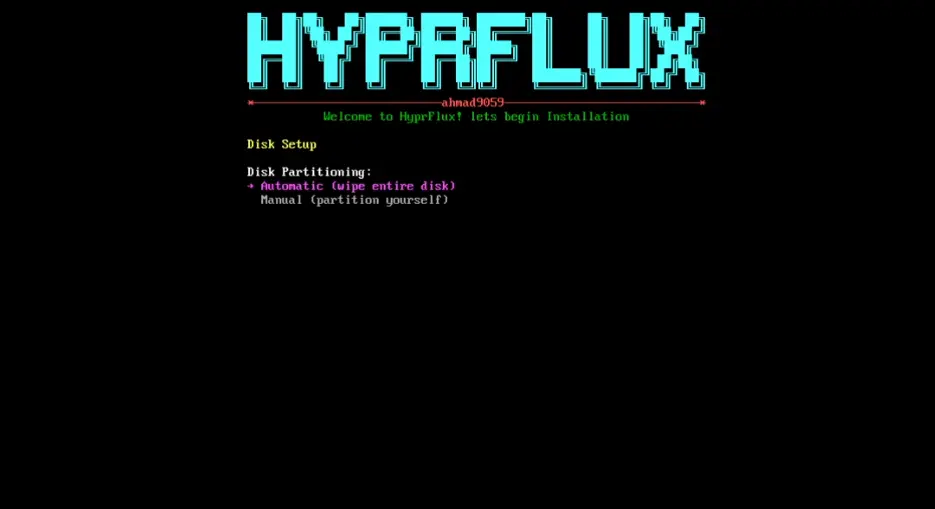
Automatic mode erases the selected disk
Check the device name, path, and size before you type
yes. This cannot be undone.There is also a Manual option for partitioning the disk yourself. The complete ISO installation guide covers that path.
From here the installer takes over. It installs the Arch Linux base system, then provisions the full HyprFlux desktop: packages, services, themes, and configuration. This takes a while, so let it run.
Step 5: Reboot
When the installer finishes, remove the USB drive and press Enter. It syncs data, unmounts everything, and reboots.
Step 6: Sign in
After the reboot, sign in through SDDM with the username and password you created. On this first login, HyprFlux finishes a few setup steps in the background. It applies your GTK, icon, cursor, and font settings, and starts the audio services. Give it a moment before everything feels settled.
You are done
You now have a working HyprFlux desktop. Hyprland is the window manager, and Waybar, Rofi, SwayNC, and the rest of the default stack are configured and running.
Next steps
- Hyprland keybindings. Learn the shortcuts before you start navigating.
- Features. See what each part of the desktop does.
- Configuration. Customize your setup.
- Troubleshooting. Use this if something does not work as described here.
- Existing-Arch installation. The guide to use next time, if you install HyprFlux on a system that already runs Arch Linux.
If you hit a problem this tutorial does not cover, open a GitHub issue. Include the step you were on and the relevant files from ~/HyprFlux/logs/.